MikroTik hEX PoE lite Hotspot Troubleshooting: Fixing Login and Payment Problems
A customer connects to your WiFi, pays for a package and still cannot browse. Another customer enters a voucher but keeps returning to the login page. These problems can interrupt sales and create unnecessary support work for a hotspot business.
The solution starts with identifying where the connection stops working. WiFi coverage, router configuration, customer accounts and payment activation are separate parts of the service.
If you are researching the MikroTik RB750UPr2 hEX PoE lite Price in Kenya, understanding these troubleshooting steps can help you plan a hotspot that is easier to maintain.
Identify Who Is Affected Before Changing Settings
Before restarting equipment, establish whether the problem affects one customer, one access point or the entire hotspot.
Ask three questions:
- Can the customer connect to the WiFi network?
- Does the hotspot login page open?
- After login, can the customer access the internet?
Test the same process with a second device. If your test device works, investigate the affected customer’s account or device first. If everyone is affected, check shared components such as the internet connection, router and billing service.
Record when the issue started and whether anyone recently changed a password, package, cable or configuration. This often narrows the search faster than repeatedly rebooting equipment.
When Customers Connect to WiFi but Cannot Open the Login Page
A WiFi connection confirms that the device has joined the wireless network. It does not confirm that the device has received usable network settings.
Check whether the customer has an IP address, gateway and DNS settings appropriate for the hotspot network. If several devices fail at this stage, investigate the customer network’s DHCP service and the connection between the access point and router.
RouterOS HotSpot can authenticate users through a local database or a remote RADIUS server. Its operation depends on the surrounding network configuration, so a missing login page does not automatically mean the billing platform has failed. MikroTik Documentation
For initial inspection, an administrator can use these read-only commands:
/ip hotspot print
/ip dhcp-server print
/ip pool print
Review the results before making changes. Avoid running the HotSpot setup wizard again on a working installation merely because one phone cannot open the portal.
When the Login Page Shows a Security Warning
A certificate warning needs investigation. Customers should not have to ignore browser security warnings to purchase access.
Check that the portal’s hostname and certificate match, and that the certificate remains valid. RouterOS documentation explains that redirecting arbitrary HTTPS requests can cause certificate mismatches. A warning may therefore involve the redirect process rather than an incorrect voucher. MikroTik Documentation
Test the intended portal address directly. Note whether the warning occurs on every device or only one, and whether it appears before or after authentication.
These details help your installer distinguish a portal configuration problem from a device-specific issue.
When a Voucher Is Rejected
Start by checking the voucher itself:
- Was it entered correctly, including capital letters where relevant?
- Has it already expired or used its allowance?
- Is another device using the account?
- Was it created in the correct customer or hotspot location?
- Does the router authenticate against the system where the voucher was issued?
RouterOS user profiles can control session behaviour and simultaneous use. Existing cookies may also affect whether a returning customer sees a login prompt. A missing prompt alone does not prove that authentication has failed. MikroTik Documentation
Use a dedicated test account when investigating. Changing a live customer’s package repeatedly can make the original fault harder to trace.
When Payment Succeeds but Internet Access Does Not Activate
Payment confirmation and internet activation are separate events. Troubleshooting should establish whether both completed.
Check the transaction in the payment or billing system rather than relying only on a customer’s screenshot. Then confirm that the purchase was associated with the intended account and that the correct package became active.
A useful support record includes:
- Transaction reference.
- Approximate payment time.
- Purchased package.
- Customer account or voucher identifier.
- Activation status shown by the billing platform.
Avoid asking a customer to pay again while the first transaction remains unresolved.
When assessing Hotspot Billing System Kenya, ask how administrators investigate successful payments that remain pending activation. You can also ask Tajira about its troubleshooting workflow and compatibility with your intended MikroTik configuration.
Confirm these capabilities with each provider before choosing a platform.
When Customers Log In but Still Cannot Browse
Once authentication succeeds, investigate internet access separately.
Check whether the router’s upstream connection is working and whether an authenticated test device can access several unrelated websites. Establish whether the failure affects all browsing or only one service.
An administrator can inspect active HotSpot sessions with:
/ip hotspot active printRouterOS HotSpot is designed around IPv4. If your network also provides IPv6, review that design carefully so customer access behaves consistently. MikroTik Documentation
Do not attempt to fix every browsing problem by expanding pre-login access rules. Allowing broad access before authentication can undermine the paid-access arrangement.
When the Hotspot Works but Feels Slow
Slowness needs a different investigation from login failure.
Compare a wired test with a wireless test, then repeat during both quiet and busy periods. Check whether the slowdown affects everyone or only customers connected through a particular access point.
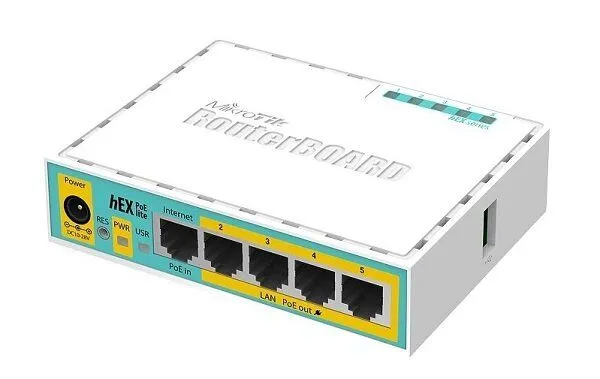
The hEX PoE lite has five 10/100 Ethernet ports and requires a separate wireless access point. Those hardware characteristics matter when planning capacity and diagnosing bottlenecks. mikrotik.com
If you are comparing hardware, the MikroTik hEX RB750Gr3 at Jupitaz is a different model. Do not treat it as an identical replacement for the RB750UPr2 or assume the same PoE capabilities.
Check Power Before Blaming the Billing System
An access point that repeatedly restarts can look like an authentication problem. Customers may lose their connection, reconnect and encounter the portal again.
Inspect power connections and Ethernet cables. Confirm that any device powered from the router is compatible with its passive PoE output.
The RB750UPr2 provides passive PoE output on Ethernet ports 2–5; compatibility must be checked against the connected equipment’s requirements. mikrotik.com
For product comparisons and supplier enquiries, consult the hEX PoE lite listing at Reisen SEO, the RB750UPr2 listing at Tawa, and the hEX PoE lite listing at Orbitlink Solutions.
Ask suppliers to confirm the exact model and the power requirements of your planned access points.
Keep a Simple Hotspot Support Checklist
For each incident, record the symptom, affected devices, payment status and checks already completed. Keep passwords and unnecessary personal information out of support notes.
Change one setting at a time, then repeat the same test. Before substantial configuration changes, save a backup and establish how you will restore access if the change fails.
A factory reset should not be the first response to a login problem. It can remove the configuration needed to understand and resolve the original issue.
Choose Your Hotspot Router With Support in Mind
A manageable hotspot needs compatible equipment, clear package rules and a reliable way to investigate failed logins and payments.
Start with the MikroTik RB750UPr2 hEX PoE lite Price in Kenya page, then confirm current pricing, access-point compatibility and installation requirements. Planning these details before deployment makes everyday support easier for both your team and your customers.
