How to Recover a MikroTik Router Using Netinstall: Complete Step-by-Step Guide
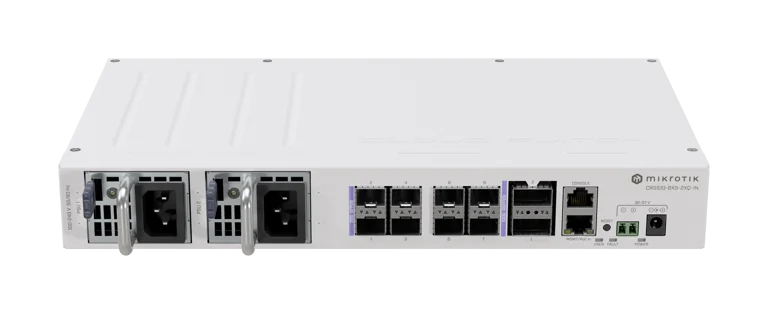
A MikroTik Netinstall guide is essential for network administrators, internet service providers, IT technicians and businesses that need to recover MikroTik routers experiencing software failures, unsuccessful RouterOS upgrades or persistent booting problems.
MikroTik routers are widely used in Kenya for residential internet connectivity, Wi-Fi hotspot businesses, enterprise networking, bandwidth management and internet distribution. Although these devices offer extensive networking capabilities, software corruption, incorrect configurations and interrupted firmware upgrades can sometimes make them inaccessible.
When conventional troubleshooting methods fail, MikroTik Netinstall provides a manufacturer-supported solution for reinstalling RouterOS and recovering compatible networking equipment.
Instead of immediately purchasing a replacement router, network administrators can use Netinstall to determine whether the existing device can be restored to working condition.
At MikroTik Kenya, we help businesses and networking professionals identify suitable equipment for reliable internet connectivity and professional network infrastructure.
This detailed MikroTik Netinstall guide explains how to recover a router using Windows or Linux, select the correct RouterOS package, troubleshoot installation problems and restore network services after recovery.
What Is MikroTik Netinstall?
MikroTik Netinstall is an official utility developed by MikroTik for installing and reinstalling RouterOS on compatible devices.
Unlike a conventional RouterOS upgrade performed through WinBox or WebFig, Netinstall can communicate with a router through its Ethernet boot functionality even when the installed operating system is no longer working correctly.
The utility allows technicians to reinstall RouterOS without necessarily accessing the existing router administration interface.
Common applications include recovering routers that cannot boot normally, reinstalling corrupted operating system files, preparing devices for redeployment and troubleshooting persistent software-related problems.
Netinstall is available as a graphical application for Windows and a command-line utility for Linux.
Both versions can be downloaded from the official MikroTik software download page.
When Should You Use MikroTik Netinstall?
Netinstall should generally be considered when conventional troubleshooting methods cannot resolve a router’s software-related problems.
| Router problem | Can Netinstall help? |
|---|---|
| RouterOS fails to boot | Potentially |
| Failed RouterOS upgrade | Potentially |
| Forgotten administrator password | Yes, through an authorized clean installation |
| Corrupted operating system | Potentially |
| Persistent software instability | Potentially |
| Incorrect firewall configuration | Yes, although simpler recovery methods may exist |
| Router inaccessible through WinBox | Depends on the underlying cause |
| Router continuously restarts | Potentially |
| Damaged Ethernet port | No |
| Burnt motherboard | No |
| Failed internal storage | Not necessarily |
| Defective power supply | No |
Netinstall is primarily a software recovery tool. It cannot repair physically damaged networking components.
Before reinstalling RouterOS, inspect the power supply, Ethernet cables, network interfaces and other basic hardware components.
For ordinary connectivity problems, read our guide on MikroTik routers connected but with no internet access before attempting a complete operating system reinstallation.
MikroTik Netinstall vs Factory Reset
Many MikroTik users confuse Netinstall with a conventional factory reset. Although both can help recover an inaccessible router, they perform different functions.
| Feature | Factory reset | Netinstall |
|---|---|---|
| Removes existing configuration | Usually | Depending on installation options |
| Reinstalls RouterOS | No | Yes |
| Formats RouterOS system storage | No | Yes |
| Can recover corrupted RouterOS | Generally no | Potentially |
| Requires a computer | Not necessarily | Yes |
| Requires RouterOS installation files | No | Yes |
| Can restore default configuration | Yes | Yes |
| Removes existing RouterOS license | No | No |
A factory reset is generally sufficient when the router operates normally but its configuration prevents authorized administrative access.
Netinstall is more appropriate when a clean operating system installation is required.
Important: Netinstall formats system storage. Back up configurations and important files before proceeding whenever the router remains accessible. Recovering the previous configuration is optional and does not guarantee preservation of every stored file.
Consult the official MikroTik Netinstall manual for manufacturer-specific recovery instructions.
Equipment Required for MikroTik Netinstall
Before starting the recovery process, prepare the following equipment and software.
| Requirement | Purpose |
|---|---|
| Windows or Linux computer | Runs the Netinstall utility |
| MikroTik router | Device requiring recovery |
| Ethernet cable | Connects the router to the computer |
| Compatible power supply | Provides stable router power |
| Netinstall application | Performs RouterOS reinstallation |
| RouterOS NPK package | Contains the operating system |
| Configuration backup | Helps restore previous network settings |
| Unmanaged Ethernet switch | Optional troubleshooting accessory |
| UPS | Recommended for uninterrupted power |
A wired Ethernet connection is required for the standard RouterBOARD network recovery procedure.
Do not rely on Wi-Fi connectivity between the recovery computer and the router.
Which MikroTik Routers Support Netinstall?
Many popular MikroTik RouterBOARD devices support Netinstall, including models used in residential, commercial and enterprise networking.
| MikroTik model | Processor architecture | Typical application |
|---|---|---|
| hEX RB750Gr3 | MMIPS | Small wired networks |
| hEX S RB760iGS | MMIPS | Residential and small business networks |
| hEX E50UG | ARM | Modern small business networks |
| L009UiGS-RM | ARM | Small and medium-sized networks |
| RB4011iGS+RM | ARM | Commercial routing |
| RB5009UG+S+IN | ARM64 | Advanced business networks |
| hAP ax² | ARM64 | Residential Wi-Fi 6 |
| hAP ax³ | ARM64 | Advanced wireless networks |
| CCR2004-1G-12S+2XS | ARM64 | Enterprise routing |
| CCR2116-12G-4S+ | ARM64 | High-capacity routing |
Always confirm the exact product code and processor architecture before downloading RouterOS.
Different generations of equipment carrying similar product names may use different hardware architectures.
For example, the original hEX RB750Gr3 and the newer hEX E50UG require different RouterOS packages.
Customers evaluating replacement or additional networking equipment can browse our MikroTik router prices in Kenya.
How to Back Up a MikroTik Router Before Netinstall
If the router remains accessible through WinBox, WebFig or the terminal, create a backup before reinstalling RouterOS.
This is particularly important for businesses operating MikroTik routers with hotspot billing, PPPoE subscribers, VPN tunnels, VLANs and customized firewall policies.
Create a Binary Configuration Backup
Open the RouterOS terminal and execute:
/system backup save name=before-netinstall password="YOUR-STRONG-PASSWORD"This creates a binary backup of the router configuration.
Navigate to the Files section in WinBox and download the backup to your computer or another secure storage location.
A binary backup is generally best restored to the same device running a compatible RouterOS version.
Export the Router Configuration
You can also create a readable configuration export using:
/export file=before-netinstallDownload the resulting .rsc file from the router’s Files section.
A configuration export allows administrators to inspect existing settings and selectively restore appropriate configurations after reinstalling RouterOS.
Sensitive values are normally omitted from standard exports. Securely preserve any credentials, certificates, private keys and other information required for recovery separately.
Important Information to Preserve
| Configuration or data | Reason |
|---|---|
| IP addresses and routes | Restores network connectivity |
| Firewall rules | Restores security policies |
| PPPoE configuration | Restores subscriber authentication |
| Hotspot configuration | Restores captive portal services |
| Custom hotspot files | Restores branded login pages |
| WireGuard keys | Restores VPN peer authentication |
| VLAN settings | Restores network segmentation |
| Certificates | Restores certificate-based services |
| RouterOS scripts | Restores automated tasks |
| User Manager data | Restores relevant subscriber records |
| Billing integration settings | Restores payment and subscriber management |
Businesses should store backups outside the router because Netinstall formats the device’s system storage.
For additional information, consult MikroTik’s configuration management documentation.
How to Recover a MikroTik Router Using Netinstall on Windows
The Windows version of Netinstall provides a graphical interface, making it accessible to technicians who prefer graphical recovery tools.
The following MikroTik Netinstall guide uses an isolated Ethernet connection between a Windows computer and the router requiring recovery.
Step 1: Download MikroTik Netinstall and RouterOS
Visit the official MikroTik download page.
Download the Windows Netinstall utility and the RouterOS system package corresponding to your router’s hardware architecture.
For example:
| Router | Required package architecture |
|---|---|
| RB5009UG+S+IN | ARM64 |
| RB4011iGS+RM | ARM |
| L009UiGS-RM | ARM |
| hEX RB750Gr3 | MMIPS |
| hEX E50UG | ARM |
| hAP ax² | ARM64 |
Choose a suitable supported Stable or Long-term release rather than an experimental version for ordinary production recovery.
Additional packages, such as the appropriate WiFi driver package, may also be required depending on the router model and RouterOS version.
All selected packages must be compatible with the device and operating system release.
Step 2: Extract the Netinstall Application
After downloading the Netinstall ZIP file, extract its contents into a dedicated folder on your computer.
An example folder structure is:
C:\MikroTik-Recovery\
    Netinstall.exe
    Packages\
        routeros-VERSION-arm64.npk
The example filename uses a version placeholder. Your downloaded RouterOS package will contain its actual release number.
Keeping the application and RouterOS packages organized simplifies the installation process.
Step 3: Disconnect Unnecessary Network Interfaces
Temporarily disable Wi-Fi, VPN adapters, virtual Ethernet interfaces and other network connections that are not required for recovery.
Leave only the Ethernet adapter intended for Netinstall active.
Multiple active interfaces may cause the recovery application to select the wrong network connection.
For Windows computers running virtualization software, additional virtual network interfaces may also need to be temporarily disabled.
Record your original network adapter settings so that you can restore them after recovery.
Step 4: Configure a Static IP Address on Windows
Assign a static IPv4 address to the Ethernet adapter connected to the MikroTik router.
On Windows, press Windows + R, enter ncpa.cpl and press Enter to open the network connections window.
Open the Ethernet adapter properties and select Internet Protocol Version 4 (TCP/IPv4).
Use the following example configuration:
Internet Protocol Version 4 Properties
Use the following IP address
Leave blank
Leave blank
Example static IPv4 settings for an isolated MikroTik recovery network.
Save the configuration.
Internet access is not required during the actual Netinstall procedure when the necessary software packages have already been downloaded.
Step 5: Run MikroTik Netinstall as Administrator
Locate the extracted Netinstall application.
Right-click the executable file and select Run as administrator.
If Windows Firewall requests permission, allow the required Netinstall communication on the isolated recovery network.
Avoid permanently disabling your computer’s firewall or exposing the recovery network to unnecessary external traffic.
Step 6: Enable Net Booting
Within Netinstall, select the Net booting option and enable the boot server.
Assign a client IP address that belongs to the same subnet as your computer but differs from the computer’s address.
For this example:
| Network setting | IP address |
|---|---|
| Recovery computer | 192.168.88.2 |
| Netinstall client IP | 192.168.88.3 |
| Subnet mask | 255.255.255.0 |
The client IP address is used during network booting and does not necessarily become the router’s permanent LAN address after installation.
Step 7: Connect the MikroTik Router
Disconnect the router from its existing production network.
Connect the recovery computer to the router using an Ethernet cable.
Most MikroTik RouterBOARD devices use ether1 for network recovery. Some devices have a specifically designated BOOT or management port.
Consult the hardware manual for your exact router model.
Recommended direct Ethernet connection between the computer running Netinstall and the MikroTik router.
If your computer uses a USB-to-Ethernet adapter and experiences repeated link interruptions, an isolated unmanaged switch between the computer and router may help maintain a stable connection.
Step 8: Put the MikroTik Router Into Etherboot Mode
Etherboot is the special boot mode that allows the router to receive RouterOS installation files over the network.
For many MikroTik models, the following procedure activates the backup bootloader’s network recovery mode:
-
Disconnect the router’s power supply.
-
Press and hold the RESET button.
-
Reconnect the power supply while holding the button.
-
Observe the appropriate status LED.
-
Wait for the model-specific Netinstall LED sequence.
-
Release the button when the device enters the network recovery state.
On many models, the status indicator flashes, remains steadily illuminated and then turns off.
The exact LED, timing and button behavior vary between hardware models. Releasing the reset button too early may initiate a configuration reset or another boot mode instead of Etherboot.
MikroTik also documents a regular bootloader recovery method that involves pressing RESET shortly after powering on the device. Consult the RouterBOOT documentation for the applicable procedure.
Step 9: Select the MikroTik Router in Netinstall
Once the router enters Etherboot mode successfully, Netinstall should detect it and display it in the available devices list.
Select the correct router and verify its identity.
Browse to the folder containing your downloaded RouterOS .npk packages.
Netinstall should display packages suitable for the detected device architecture.
Before proceeding, ensure that you have selected the correct physical router, compatible operating system release and any necessary additional packages.
Step 10: Choose the Installation Configuration
Netinstall provides several options that affect how the recovered router is configured.
| Installation option | Recommended application |
|---|---|
| Keep old configuration | Recover RouterOS while retaining supported configuration data |
| Apply default configuration | Restore the router’s normal manufacturer configuration |
| Empty configuration | Build a completely customized network |
| Configure script | Deploy a prepared configuration automatically |
| Auto reboot | Restart the device after successful installation |
For a router suffering from suspected configuration corruption, a clean installation is generally preferable to retaining the potentially problematic configuration.
The keep-old-configuration option does not preserve every user file, container or application database.
Step 11: Install RouterOS
Select the required RouterOS packages and click Install.
Netinstall will transfer and install the operating system on the router.
During this process:
-
Do not disconnect the Ethernet cable.
-
Do not turn off the computer.
-
Do not interrupt the router’s power supply.
-
Do not close the Netinstall application.
Wait until Netinstall reports that the installation has completed successfully.
If automatic reboot is not enabled, use the available reboot option when appropriate.
For screenshots of the actual graphical interface, refer to the official Netinstall for Windows guide.
Step 12: Reconnect to the Recovered MikroTik Router
After restarting the router, connect through WinBox using the appropriate LAN interface.
Many MikroTik devices with their manufacturer configuration use 192.168.88.1 as the LAN management address, but this is not universal.
Depending on the model and factory configuration, you may need to connect through MAC WinBox or use the credentials printed on the device label.
A router installed with an empty configuration may not have a DHCP server or predefined LAN IP address.
Secure the administrator account, verify the installed RouterOS version and restore the required network configuration.
Finally, restore your computer’s original network adapter settings.
How to Use MikroTik Netinstall on Linux
Linux users can recover MikroTik routers using the official netinstall-cli command-line utility.
This method is particularly useful for network engineers, ISP technicians and IT professionals who regularly work with Linux-based networking environments.
Step 1: Download and Extract Netinstall
Download the Linux Netinstall utility and the appropriate RouterOS packages from the official MikroTik website.
Open the terminal and extract the downloaded archive:
tar -xzf netinstall-VERSION.tar.gzReplace VERSION with the actual downloaded release number.
Step 2: Identify Your Ethernet Interface
Run the following command:
ip link showIdentify the Ethernet interface connected to your MikroTik router.
Depending on your Linux distribution and hardware configuration, the interface may be named eth0, enp3s0 or something similar.
The following examples use eth0.
Step 3: Configure a Static IP Address
Assign an appropriate static IPv4 address to the dedicated recovery interface:
sudo ip link set eth0 down
sudo ip addr add 192.168.88.2/24 dev eth0
sudo ip link set eth0 up
Ensure that the interface does not have conflicting addresses or DHCP settings.
The recovery network should be isolated from the organization’s production network.
Step 4: Start the Netinstall Utility
For an ARM64 MikroTik router, an example command for reinstalling RouterOS and applying the default configuration is:
sudo ./netinstall-cli -r -i eth0 \
routeros-VERSION-arm64.npk
Replace the filename with the actual downloaded RouterOS package.
For a compatible Wi-Fi 6 router requiring an additional wireless package, the command may resemble:
sudo ./netinstall-cli -r -i eth0 \
routeros-VERSION-arm64.npk \
wifi-qcom-VERSION-arm64.npk
Use matching package versions and the correct device architecture.
Step 5: Activate Etherboot Mode
Put the MikroTik router into its supported network recovery mode using the model-specific reset button or bootloader procedure.
The Linux Netinstall utility should detect the device and begin the installation process.
Step 6: Verify Installation Completion
Monitor the terminal output for installation errors or successful completion messages.
Once installation has completed, restart the router if necessary and reconnect using the appropriate management interface.
Useful Linux Netinstall Parameters
| Parameter | Function |
|---|---|
-r |
Reinstall RouterOS with the default configuration |
-e |
Reinstall RouterOS with an empty configuration |
-i |
Specify the network interface |
-a |
Specify the temporary client IP address |
-v |
Enable detailed diagnostic output |
-s |
Specify a custom configuration script |
--mac |
Restrict installation to a specified device MAC address |
When neither -r nor -e is specified, supported versions of the utility attempt to preserve the existing core configuration.
Consult the official MikroTik Netinstall for Linux documentation to confirm the parameters available in your downloaded version.
RouterOS Manual
Why Is My MikroTik Router Not Showing in Netinstall?
One of the most common challenges experienced by technicians is a router that does not appear in the Netinstall application.
Several factors can prevent successful device discovery.
Incorrect Ethernet Port
Most MikroTik routers use their first Ethernet port or a designated BOOT port for network recovery.
Connecting the Ethernet cable to an unsupported port may prevent Netinstall from detecting the device.
Check the hardware manual for the specific MikroTik router model.
Incorrect Static IP Configuration
The recovery computer and Netinstall client address must belong to the same subnet while using different IP addresses.
For example, the following configuration is appropriate for an isolated recovery network:
| Device | IP address |
|---|---|
| Computer | 192.168.88.2 |
| Netinstall client | 192.168.88.3 |
| Subnet mask | 255.255.255.0 |
Avoid assigning the same IP address to both devices.
Multiple Active Network Adapters
Virtual network adapters, wireless interfaces and VPN connections can interfere with device discovery.
Temporarily disable unnecessary interfaces and restart Netinstall.
Incorrect Reset Button Timing
Releasing the RESET button too early may cause the router to perform a configuration reset rather than enter network recovery mode.
Follow the manufacturer instructions for the exact hardware model.
Firewall or Security Software Restrictions
Computer security software may block the network communication required by Netinstall.
Allow the application to communicate over the dedicated recovery interface.
Restore any temporarily modified security settings after completing the installation.
USB-to-Ethernet Adapter Problems
Some USB Ethernet adapters experience link interruptions when the connected router restarts.
These interruptions can prevent the Netinstall utility from discovering the router.
An isolated unmanaged Ethernet switch may help maintain a stable connection.
Protected RouterBOOT Settings
MikroTik devices with Protected RouterBOOT enabled may prevent conventional reset-button and Etherboot recovery procedures.
In such cases, consult the official model-specific recovery documentation or contact authorized technical support.
Protected RouterBOOT settings should not be modified without understanding their implications.
MikroTik Netinstall Troubleshooting Guide
The following table summarizes common problems and appropriate troubleshooting actions.
| Problem | Possible cause | Recommended solution |
|---|---|---|
| Router not detected | Incorrect Ethernet port | Use ether1 or the designated BOOT port |
| Router not detected | Incorrect boot mode | Repeat the supported Etherboot procedure |
| Router not detected | Computer firewall | Allow Netinstall communication |
| Router not detected | Multiple active interfaces | Disable unnecessary network adapters |
| Router appears but installation fails | Incorrect RouterOS package | Verify processor architecture |
| No packages displayed | Incompatible package selection | Download the correct NPK files |
| Installation remains at Ready | Communication or application problem | Restart Netinstall and retry |
| Installation stops unexpectedly | Unstable network connection | Replace Ethernet cables or test another adapter |
| Router fails to restart | Bootloader or hardware problem | Investigate RouterBOOT and hardware condition |
| Wi-Fi missing after installation | Required wireless package missing | Install the appropriate matching wireless package |
| Router inaccessible after installation | Empty configuration | Use supported local management methods |
| Previous configuration missing | Clean installation selected | Restore a compatible backup |
MikroTik also maintains an official Netinstall troubleshooting knowledge base, which provides additional guidance for persistent recovery problems.
What to Do After Successfully Reinstalling RouterOS
Recovering the router is only the first stage of restoring a functioning network.
After Netinstall completes, several additional configuration and verification activities may be required.
Verify the RouterOS Version
Log in to the recovered router and run:
/system resource printConfirm the operating system version, processor architecture and available system resources.
Check the installed packages using:
/system package printEnsure that all packages required for your network applications are available.
Secure the Router Administrator Account
Create appropriate administrative credentials and restrict unnecessary management services.
Use a strong password and ensure that unauthorized users cannot access the device through the internet.
Do not reconnect a router with an empty or unsecured configuration directly to an untrusted network.
Restore the Internet Connection
Depending on your internet service provider, configure the WAN interface using DHCP, PPPoE or static IP settings.
Verify DNS resolution, routing and internet connectivity.
Businesses using satellite internet can explore connectivity solutions through Starlink Kenya and Spacelink Kenya.
Restore Network Services
Reconfigure the services required by your network, including:
-
DHCP servers.
-
Firewall protection.
-
Network address translation.
-
VLAN interfaces.
-
Wireless access points.
-
PPPoE servers.
-
Hotspot authentication.
-
WireGuard VPN tunnels.
-
Bandwidth management.
-
Remote monitoring.
-
Billing system integrations.
Test each service before reconnecting the entire production network.
Check RouterBOOT Firmware
RouterOS and RouterBOOT are separate software components.
RouterOS is the main operating system, while RouterBOOT is responsible for initializing the hardware and loading the operating system.
To check RouterBOOT information, run:
/system routerboard printReview the current firmware and available upgrade firmware.
If an appropriate RouterBOOT upgrade is required, follow the official MikroTik instructions. A normal upgrade procedure may involve:
/system routerboard upgradeFollowed by a controlled reboot:
/system rebootPerform firmware upgrades during an approved maintenance window and ensure stable power throughout the process.
Netinstall itself does not automatically reset all RouterBOOT settings.
How to Restore a MikroTik Configuration After Netinstall
There are two common methods of restoring a MikroTik configuration after recovery.
Method 1: Restore a Binary Backup
Upload the previously downloaded .backup file to the recovered MikroTik router.
Use the following command, adjusting the filename and supplying the backup password when required:
/system backup load name=before-netinstall.backupThe router may restart after restoring the backup.
Binary backups are best suited to the original hardware and compatible RouterOS environments.
Restoring an old backup containing the configuration problem that caused the original failure may reintroduce the same issue.
Method 2: Import a Configuration Export
Upload the previously saved .rsc configuration file.
Review the exported configuration carefully before importing it.
An example import command is:
/import file-name=before-netinstall.rscImporting a complete configuration into a router that already has default settings may cause duplicate entries or configuration conflicts.
For complex networks, selectively restoring individual configuration sections is often preferable.
| Recovery method | Advantage | Limitation |
|---|---|---|
| Binary backup | Convenient configuration restoration | Hardware and version compatibility considerations |
| Configuration export | Readable and editable | May require manual adjustments |
| Manual configuration | Allows a clean network design | More time-consuming |
| Custom deployment script | Useful for standardized installations | Requires preparation and testing |
Recovering MikroTik Hotspot and PPPoE Billing Networks
For Kenyan Wi-Fi entrepreneurs and internet service providers, MikroTik router failure can interrupt subscriber connectivity and revenue collection.
A professional recovery strategy should therefore prioritize the restoration of subscriber authentication and essential network services.
Recommended Recovery Sequence
Recover RouterOS
Reinstall the operating system using Netinstall.
Restore upstream internet
Configure the WAN interface, routing and DNS.
Restore subscriber networks
Configure bridges, VLANs, DHCP and address pools.
Restore authentication
Configure Hotspot, PPPoE and RADIUS where required.
Reconnect billing services
Restore payment and subscriber management integration.
Test and resume service
Verify authentication, package limits and internet access.
Businesses using automated Wi-Fi billing can explore Tajira Kenya for relevant subscriber management and networking solutions.
For additional equipment selection guidance, read our article on the best MikroTik routers for Wi-Fi hotspot billing in Kenya.
Maintaining current off-device configuration backups can significantly simplify recovery after unexpected router failures.
Does MikroTik Netinstall Remove the RouterOS License?
No. Under the normal RouterBOARD recovery process, Netinstall preserves the existing RouterOS license.
For example, if your MikroTik RB5009 has a valid RouterOS Level 5 license, reinstalling RouterOS does not ordinarily require purchasing another license.
However, different licensing considerations may apply to x86 installations, virtual machines and situations involving replacement storage or hardware.
Always consult the official MikroTik licensing documentation before performing recovery on nonstandard RouterOS installations.
When Should You Replace a MikroTik Router Instead of Recovering It?
Although Netinstall can recover many software-related problems, replacing a router may be necessary in some circumstances.
Consider replacement when the device exhibits persistent internal storage errors, physical damage, defective network interfaces, repeated hardware failures or insufficient capacity for the organization’s networking requirements.
Replacing outdated networking equipment may also provide opportunities to improve processing capacity, Ethernet connectivity, wireless performance and network scalability.
Recommended MikroTik Router Replacements
MikroTik hEX E50UG
Suitable for smaller wired networks, retail businesses and home offices requiring an affordable RouterOS device.
MikroTik L009UiGS-RM
Suitable for small and medium-sized businesses requiring multiple Ethernet interfaces and flexible network administration.
MikroTik RB4011iGS+RM
Suitable for commercial networking environments requiring ten Gigabit Ethernet interfaces and 10G SFP+ connectivity.
MikroTik RB5009UG+S+IN
Suitable for growing businesses, apartment internet networks, hotspot operators and advanced routing applications.
Available through Orbitlink Solutions, Tawa Kenya, Jupitaz Kenya and Reisen SEO.
MikroTik CCR2004-1G-12S+2XS
Suitable for larger enterprise networks and ISP infrastructure requiring extensive high-speed optical connectivity.
For further purchasing guidance, read our article on the best MikroTik routers for small businesses in Kenya.
How Much Does MikroTik Router Recovery Cost in Kenya?
The cost of professional MikroTik router recovery depends on the complexity of the problem, router model, configuration requirements and the amount of technical work involved.
| Recovery service | Illustrative price range |
|---|---|
| Basic router diagnosis | KSh 500–1,500 |
| RouterOS reinstallation | KSh 1,000–3,000 |
| Basic configuration restoration | KSh 2,000–5,000 |
| Hotspot configuration recovery | KSh 3,000–8,000 |
| PPPoE and billing configuration | KSh 5,000–15,000 |
| Enterprise network restoration | KSh 10,000–30,000+ |
| On-site technical support | Quotation required |
These amounts are illustrative planning estimates, not verified market prices or official MikroTik Kenya service tariffs.
Complex ISP and enterprise networks may require additional diagnostic work, configuration reconstruction, security testing and on-site technical assistance.
Explore our MikroTik networking services in Kenya for professional networking enquiries.
How to Prevent Future MikroTik Router Failures
Although not every hardware or software failure can be prevented, adopting good network administration practices can reduce unnecessary disruptions.
Maintain Regular Configuration Backups
Create configuration backups whenever significant network changes are made.
Store copies securely outside the router and maintain a record of the RouterOS version associated with each backup.
Use Stable RouterOS Releases
Production networks should generally use appropriate Stable or Long-term RouterOS releases.
Avoid installing experimental firmware on critical business routers without testing it in a controlled environment.
Provide Reliable Backup Power
Unexpected power interruptions during software installation can cause serious operational problems.
Use a suitable UPS and appropriate electrical protection equipment, particularly in commercial installations.
Monitor Router Resources
Monitor CPU utilization, memory consumption, storage availability and system logs.
Persistent resource exhaustion may indicate that the existing router is unsuitable for the network’s current workload.
Use RouterOS Safe Mode
When making potentially disruptive configuration changes, RouterOS Safe Mode can help reverse certain changes if the administrative session terminates unexpectedly.
This is especially valuable when modifying firewall rules, network bridges, VLAN configurations and routing settings.
Maintain a Spare Router
Internet service providers and businesses that depend heavily on connectivity should consider maintaining a compatible spare router.
A prepared replacement device can reduce service interruptions when the primary router fails.
Frequently Asked Questions
1. What is MikroTik Netinstall used for?
MikroTik Netinstall is used to install or reinstall RouterOS on compatible MikroTik networking devices. It is particularly useful for recovering inaccessible routers and troubleshooting operating system corruption.
2. Can Netinstall recover a completely dead MikroTik router?
Netinstall may recover a router experiencing operating system or boot-related software problems. However, it cannot repair a router with a defective motherboard, damaged Ethernet interface or failed power supply.
3. Does Netinstall delete MikroTik configurations?
Netinstall formats the router’s system storage. Supported configuration data can optionally be preserved, but user files and separately stored databases may be lost. Always create an external backup before proceeding when possible.
4. Can I recover a MikroTik router without knowing its password?
An authorized owner or administrator may recover a compatible router by performing a factory reset or clean Netinstall installation, subject to applicable device protection settings. Existing configuration and credentials may be erased.
5. Can I use MikroTik Netinstall without internet access?
Yes. Once you have downloaded the Netinstall application and appropriate RouterOS packages, the recovery process can operate over an isolated Ethernet connection without internet access.
6. Why is my MikroTik RB5009 not appearing in Netinstall?
Possible causes include incorrect network adapter settings, firewall restrictions, incorrect Ethernet port selection, unsupported boot mode or Protected RouterBOOT settings. Check each requirement before concluding that the router is defective.
7. Does Netinstall work on Windows 11?
MikroTik provides a Windows graphical Netinstall application that can be used on suitable Windows systems. Administrator privileges, a working Ethernet interface and appropriate firewall permissions are important for successful operation.
8. Can I use Netinstall to downgrade RouterOS?
Netinstall can install compatible RouterOS releases, but downgrade possibilities depend on hardware support, factory software requirements and applicable device restrictions. Downgrading may also introduce security or configuration compatibility problems.
Conclusion
This MikroTik Netinstall guide provides network administrators, businesses and internet service providers in Kenya with a structured approach to recovering MikroTik routers experiencing software-related failures.
By downloading the appropriate RouterOS packages, preparing an isolated Ethernet connection, activating Etherboot mode and completing the installation correctly, technicians can restore many inaccessible MikroTik devices.
However, successful recovery requires more than reinstalling the operating system. Administrators must also restore network security, subscriber authentication, routing, billing integrations and other essential services.
Regular configuration backups, stable RouterOS releases, reliable power supplies and professional network maintenance can significantly improve business continuity.
Whether you need to recover an existing MikroTik router or upgrade your networking infrastructure, MikroTik Kenya provides equipment options for residential, commercial and enterprise networking applications.
Contact MikroTik Kenya today to discuss your router requirements, networking equipment and infrastructure upgrade needs.
