How to Configure MikroTik CCR1009 for ISP Networks in Kenya: Step-by-Step Guide
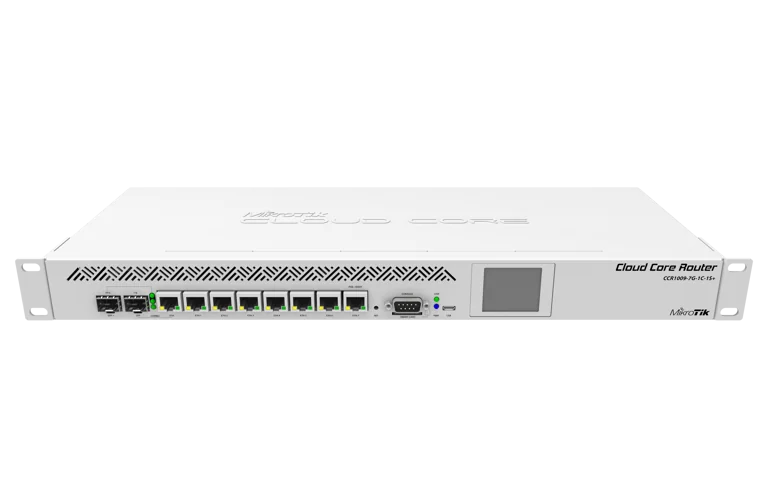
Setting up a reliable internet service provider (ISP) network requires proper routing, subscriber authentication, bandwidth management and network security. The MikroTik CCR1009-7G-1C-1S+PC Cloud Core Router offers advanced RouterOS functionality for managing these networking requirements.
For Kenyan ISPs serving residential customers, businesses, hotels and institutions, configuring the MikroTik CCR1009 correctly can help improve network organization, security and traffic management.
Whether you are operating a small ISP in Nairobi, expanding a wireless network in Nakuru or managing subscribers in Mombasa, understanding MikroTik RouterOS configuration is essential.
In this guide, we explain how to configure the MikroTik CCR1009 for ISP applications, including WAN connectivity, LAN addressing, NAT, PPPoE subscriber management, bandwidth control and firewall protection.
For hardware specifications and product enquiries, visit the MikroTik CCR1009-7G-1C-1S+PC Cloud Core Router product page in Kenya.
Why Use MikroTik CCR1009 for ISP Networks?
The MikroTik CCR1009 is a professional Cloud Core Router designed for advanced routing and network-management tasks.
The CCR1009-7G-1C-1S+PC model features a nine-core TILE processor, seven Gigabit Ethernet ports, one Gigabit Ethernet/SFP combo interface and one 10G SFP+ interface.
These features make it suitable for certain ISP network environments where routing flexibility, subscriber authentication and traffic control are required.
Key capabilities include:
- PPPoE server configuration for subscriber authentication.
- Firewall and NAT configuration for network security.
- DHCP services for local network addressing.
- VLAN support for separating network traffic.
- Bandwidth management using RouterOS queues.
- Static and dynamic routing.
- Network monitoring and troubleshooting.
- Integration with compatible external billing platforms.
Important: The CCR1009-7G-1C-1S+PC is a discontinued MikroTik model. It can remain useful in existing networks, but operators planning new deployments should compare it with newer Cloud Core Router models.
1. Plan Your MikroTik CCR1009 Network Architecture
Before configuring RouterOS, create a basic network plan.
A typical small ISP network may include:
Internet Provider → MikroTik CCR1009 → Distribution Switch → Wireless Access Points or Fibre Equipment → Subscribers
The CCR1009 acts as the main router, handling subscriber authentication, routing and traffic-management policies.
Example Network Configuration
| Interface | Purpose | Example configuration |
|---|---|---|
| ether1 | WAN connection | DHCP from upstream provider |
| ether2 | Management network | 192.168.88.1/24 |
| ether3 | PPPoE subscriber network | PPPoE server interface |
| ether4 | Additional network | Reserved for future use |
| ether5–ether7 | Distribution or expansion | Configure as required |
| SFP+ interface | High-speed uplink | Optional fibre connection |
This is an illustrative configuration, not a universal production design.
The following steps assume an authorized administrator is configuring a CCR1009 with RouterOS v7 using a controlled maintenance connection.
The router should have a known, working configuration backup before changes are made.
2. Access MikroTik CCR1009 Using WinBox
WinBox is MikroTik’s graphical configuration utility.
Step 1: Connect to the Router
Connect your computer directly to the management interface of the CCR1009.
Step 2: Open WinBox
Launch WinBox and locate the router using its management IP address or MAC-based discovery.
Step 3: Log In
Enter the configured administrator username and password.
On a factory-default or reset router, follow the credentials and setup instructions supplied with the device.
Step 4: Secure Administrator Access
Before proceeding:
- Create a strong administrator password.
- Configure a separate named administrator account where appropriate.
- Disable unnecessary management services.
- Restrict management access to trusted IP addresses.
- Back up the existing configuration.
Avoid exposing WinBox, SSH or WebFig management interfaces directly to the public internet.
For production environments, use a secure management network or VPN.
3. Configure the WAN Internet Connection
The WAN interface connects your MikroTik CCR1009 to the upstream internet provider.
The configuration depends on whether the provider uses DHCP, static IP addressing or PPPoE authentication.
Option A: Configure WAN Using DHCP
If your upstream provider assigns an IP address automatically, use:
/ip dhcp-client
add interface=ether1 disabled=no
Check the assigned address:
/ip dhcp-client print detailVerify that the interface has received the expected IP address and gateway.
Option B: Configure WAN Using a Static IP Address
If your provider supplies a static IP address, configure it using the details provided by the ISP.
For example, using documentation-only addresses:
/ip address
add address=203.0.113.2/30 interface=ether1
Configure the default gateway:
/ip route
add dst-address=0.0.0.0/0 gateway=203.0.113.1
The addresses above are examples. Replace them with the actual network details supplied by your upstream provider.
Do not configure both DHCP and a static default route on the same WAN unless your routing design specifically requires it.
4. Configure the Management LAN
A separate management network makes it easier to administer the router without exposing administrative services to subscribers.
For this example, use:
- Management interface: ether2
- Router address: 192.168.88.1
- Subnet: 192.168.88.0/24
Assign the address:
/ip address
add address=192.168.88.1/24 interface=ether2
This command assumes the address is not already configured.
If the router already uses 192.168.88.1, do not add a duplicate address.
Configure a Management DHCP Server
Create an address pool:
/ip pool
add name=management-pool ranges=192.168.88.100-192.168.88.200
Create the DHCP server:
/ip dhcp-server
add name=management-dhcp interface=ether2 \
address-pool=management-pool disabled=no
Define the network:
/ip dhcp-server network
add address=192.168.88.0/24 gateway=192.168.88.1 \
dns-server=1.1.1.1,8.8.8.8
This allows authorized management devices connected to ether2 to receive IP addresses automatically.
Before applying these commands, verify that the interface is not already part of a bridge or another DHCP configuration.
5. Configure NAT for Internet Access
Network Address Translation allows private network addresses to access the internet through an upstream connection.
For a simple deployment where ether1 is the internet-facing interface:
/ip firewall nat
add chain=srcnat out-interface=ether1 \
action=masquerade
This configuration is useful when subscribers or management devices use private IPv4 addresses and the upstream provider expects NAT.
If your ISP has assigned public address blocks to subscribers, a routed configuration may be more appropriate than masquerading their traffic.
For larger networks, plan NAT policies carefully and consider whether carrier-grade NAT is required.
6. Configure a PPPoE Server on MikroTik CCR1009
PPPoE is widely used by internet service providers to authenticate subscribers and manage customer connections.
With PPPoE, each customer can connect using a username and password.
Step 1: Create an IP Address Pool
Create a pool for subscriber addresses:
/ip pool
add name=pppoe-pool ranges=10.10.10.2-10.10.10.254
Step 2: Create a PPP Profile
/ppp profile
add name=isp-profile local-address=10.10.10.1 \
remote-address=pppoe-pool \
dns-server=1.1.1.1,8.8.8.8
Step 3: Enable the PPPoE Server
/interface pppoe-server server
add interface=ether3 service-name=KenyaISP \
default-profile=isp-profile \
authentication=chap,mschap2 \
one-session-per-host=yes disabled=no
This example assumes ether3 is dedicated to subscriber traffic and is not already configured as a bridge port or another subscriber service.
Step 4: Create a Subscriber Account
/ppp secret
add name=customer001 password="ReplaceWithStrongPassword" \
service=pppoe profile=isp-profile
Replace the example password with a unique, strong credential.
For large subscriber networks, using RADIUS authentication is generally more scalable than maintaining individual local PPP secrets.
Step 5: Verify Active PPPoE Sessions
/ppp active printThis displays authenticated PPP users currently connected to the router.
Security note: The example demonstrates a basic PPPoE setup. Production deployment requires appropriate firewall rules, subscriber isolation, credential management, logging and access-control policies.
7. Configure Internet Packages and Bandwidth Limits
Bandwidth management is an important part of operating an ISP in Kenya.
Customers may subscribe to different packages based on their speed requirements and budget.
For example, an ISP could offer the following illustrative packages:
| Package | Download speed | Upload speed |
|---|---|---|
| Basic | 5 Mbps | 5 Mbps |
| Standard | 10 Mbps | 10 Mbps |
| Premium | 20 Mbps | 20 Mbps |
| Business | 50 Mbps | 50 Mbps |
These are example service tiers, not actual offers or prices.
Create PPP Profiles With Speed Limits
For a symmetrical 10 Mbps package:
/ppp profile
add name=package-10mbps \
local-address=10.10.10.1 \
remote-address=pppoe-pool \
rate-limit=10M/10M \
dns-server=1.1.1.1,8.8.8.8
Create a 20 Mbps package:
/ppp profile
add name=package-20mbps \
local-address=10.10.10.1 \
remote-address=pppoe-pool \
rate-limit=20M/20M \
dns-server=1.1.1.1,8.8.8.8
RouterOS PPP profile rate limits are expressed from the router’s perspective: transmit/receive. For subscriber connections, transmit corresponds to customer download and receive corresponds to customer upload.
Assign a customer to the appropriate package:
/ppp secret
set [find name="customer001"] profile=package-10mbps
This allows administrators to manage customer speed limits using subscriber profiles.
For production networks, also review FastTrack behavior, queue interaction and aggregate capacity to ensure traffic shaping operates as intended.
8. Secure the MikroTik CCR1009 Firewall
A correctly configured firewall helps protect the router from unauthorized access.
Firewall configuration should be developed carefully, especially when managing remote networks.
Before modifying the firewall, use RouterOS Safe Mode and ensure that you have a working backup and recovery method.
Basic Firewall Planning
A production ISP firewall should generally distinguish between:
- Traffic destined for the router itself.
- Traffic passing through the router.
- Authorized management traffic.
- Established and related connections.
- Invalid packets.
- Subscriber-to-subscriber traffic.
- Traffic arriving from untrusted WAN interfaces.
For example, RouterOS can accept established and related traffic using:
/ip firewall filter
add chain=input connection-state=established,related \
action=accept comment="Allow established and related"
And drop invalid input packets:
/ip firewall filter
add chain=input connection-state=invalid \
action=drop comment="Drop invalid input"
These are only individual components of a firewall policy, not a complete secure firewall configuration.
A production policy must also permit necessary management, routing and diagnostic traffic before implementing final deny rules.
Avoid copying an incomplete firewall ruleset into a live ISP router.
9. Integrate MikroTik CCR1009 With Hotspot Billing Software
Kenyan internet providers frequently require systems for managing customer subscriptions, payments and internet access.
A compatible hotspot or PPPoE billing platform may provide:
- Subscriber account management.
- Internet package creation.
- Subscription expiry controls.
- Payment reconciliation.
- M-Pesa payment integration.
- Voucher management.
- Customer usage records.
- Automated account activation or suspension.
The MikroTik CCR1009 can communicate with compatible external systems using RouterOS-supported mechanisms such as RADIUS and the RouterOS API.
For production deployments, use secure API access, limited-permission accounts and trusted management networks.
Billing platforms must be tested for compatibility with the installed RouterOS version.
10. Connect Starlink Internet to MikroTik CCR1009
The CCR1009 can also serve as a network-management router behind compatible Starlink equipment.
This may be useful for businesses, institutions and supported ISP-style network deployments.
A typical setup is:
Starlink Equipment → Ethernet Handoff → MikroTik CCR1009 → Distribution Network → Connected Devices
Depending on the Starlink hardware, an Ethernet adapter or appropriate network configuration may be necessary.
Example Starlink WAN Configuration
If Starlink provides an IP address through DHCP:
/ip dhcp-client
add interface=ether1 disabled=no
You can then configure LAN addressing, NAT, routing and firewall policies according to your network design.
For information about Starlink equipment and connectivity options, visit Starlink Kenya.
Before distributing or reselling a Starlink connection, verify that the subscription and applicable service terms permit the intended use.
11. Monitor MikroTik CCR1009 Network Performance
Monitoring helps identify network problems before they significantly affect subscribers.
RouterOS includes several useful diagnostic tools.
Check CPU Usage
/system resource printMonitor Network Traffic
/interface monitor-traffic ether1Check Active PPPoE Users
/ppp active printView System Logs
/log printCheck Network Connectivity
/ping 1.1.1.1Administrators should also monitor interface errors, available memory, CPU utilization, routing behavior and network latency.
For growing networks, centralized monitoring using SNMP and compatible monitoring platforms can provide additional visibility.
12. Common MikroTik CCR1009 Configuration Problems
Problem: WAN Connected but No Internet
Possible causes include incorrect IP addressing, missing default routes, DNS issues or upstream connectivity problems.
Check the DHCP client or static WAN configuration, routing table and upstream gateway.
Problem: PPPoE Subscribers Cannot Connect
Verify that:
- The PPPoE server is enabled.
- The subscriber interface is correct.
- The customer username and password are valid.
- The assigned PPP profile exists.
- The subscriber IP pool has available addresses.
- The access network is transporting PPPoE traffic correctly.
Problem: Customers Experience Slow Internet
Investigate upstream bandwidth, CPU load, interface utilization, queue configuration, packet loss and network congestion.
Do not assume that slow speeds are caused by the router without measuring the actual bottleneck.
Problem: Router Becomes Unreachable
Check management interface settings, firewall changes, routing and physical connectivity.
RouterOS Safe Mode can help reduce the risk of losing access while making configuration changes.
13. Where to Find MikroTik CCR1009 Equipment in Kenya
When purchasing legacy MikroTik networking equipment, verify the model number, condition, included accessories and warranty.
The following Kenyan networking websites provide product information and enquiry options:
- TAWA – MikroTik CCR1009-7G-1C-1S+PC Cloud Core Router
- Jupitaz – MikroTik CCR1009-7G-1C-1S+PC
- Reisen SEO – MikroTik CCR1009 Cloud Core Router
Availability and pricing should be confirmed directly with each seller.
For further product information, visit MikroTik Kenya’s CCR1009 Cloud Core Router listing.
Frequently Asked Questions
How do I configure MikroTik CCR1009 for an ISP?
Start by configuring the WAN connection, management LAN, routing and firewall. Then configure subscriber services such as PPPoE, authentication and bandwidth policies according to your ISP network design.
Can MikroTik CCR1009 manage PPPoE users?
Yes. RouterOS supports PPPoE server functionality, allowing administrators to authenticate subscribers and assign service profiles.
How many customers can MikroTik CCR1009 support?
There is no single reliable subscriber limit. Capacity depends on bandwidth usage, packet rates, PPPoE overhead, firewall complexity, queues and other enabled services. Test the expected workload before deploying the router.
Can MikroTik CCR1009 work with M-Pesa billing?
Yes, through a compatible external billing system that supports M-Pesa payment processing and MikroTik integration. The router does not provide native M-Pesa payment processing by itself.
Does MikroTik CCR1009 support VLANs?
Yes. RouterOS supports VLAN configuration for segmenting network traffic.
Can I configure MikroTik CCR1009 using WinBox?
Yes. WinBox provides graphical access to RouterOS configuration and monitoring features.
Can MikroTik CCR1009 work with Starlink?
Yes. It can connect to compatible Starlink equipment through an Ethernet connection and manage downstream networking functions.
Is MikroTik CCR1009 still suitable for new ISP installations?
It may be suitable in specific circumstances, but because the model is discontinued, newer MikroTik routers should also be considered for long-term deployments.
Conclusion
The MikroTik CCR1009-7G-1C-1S+PC provides advanced routing and network-management capabilities for ISPs and businesses in Kenya.
By configuring WAN connectivity, subscriber authentication, PPPoE profiles, bandwidth policies and firewall protection, administrators can build a structured network suited to their operational requirements.
However, successful ISP deployment requires more than basic configuration. Operators should consider network security, hardware capacity, monitoring, software compatibility and future expansion.
For additional hardware information and purchasing enquiries, explore the MikroTik CCR1009-7G-1C-1S+PC Cloud Core Router in Kenya.
