
MikroTik L009UiGS-2HaxD-IN Factory Reset
Learn how to factory reset MikroTik L009UiGS-2HaxD-IN using the reset button, WinBox or terminal, plus how to reconnect and configure the router afterward.
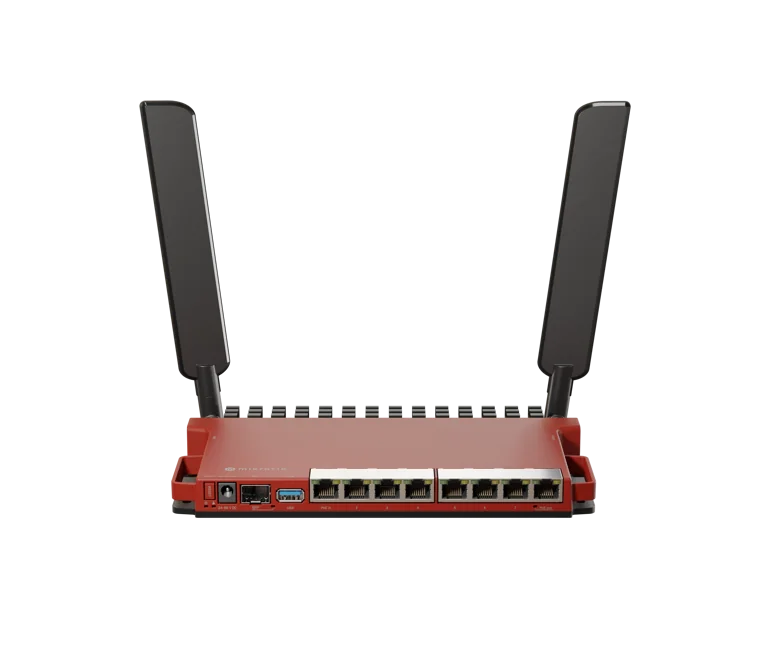
MikroTik L009UiGS-2HaxD-IN Factory Reset
How to Factory Reset MikroTik L009UiGS-2HaxD-IN Step by Step
MikroTik L009UiGS-2HaxD-IN Factory Reset Guide
If your MikroTik L009UiGS-2HaxD-IN is misconfigured, inaccessible, behaving unexpectedly, or you simply want to start again with a clean setup, performing a factory reset can restore the router to its default configuration.
A factory reset is useful when you have forgotten the login credentials, made configuration changes that broke connectivity, purchased a previously configured unit, or want to prepare the router for a completely new network.
You can view the MikroTik L009UiGS-2HaxD-IN on MikroTik Kenya or browse more MikroTik products in Kenya.
What Happens When You Factory Reset the MikroTik L009?
A factory reset removes the current RouterOS configuration and restores the router to its default setup.
This can remove settings such as:
WAN configuration
LAN IP addresses
DHCP settings
firewall rules
NAT rules
VLANs
PPPoE settings
hotspot configuration
Wi-Fi settings
user accounts
bandwidth queues
VPN settings
custom scripts
For this reason, you should always create a backup before resetting the router if you may need the current configuration later.
When Should You Reset the L009UiGS-2HaxD-IN?
A factory reset may be appropriate in several situations.
Forgotten Administrator Password
If you cannot access the router because the password has been forgotten, a hardware reset may allow you to regain access by restoring the default configuration.
Incorrect Network Configuration
You may accidentally create firewall, bridge or VLAN settings that prevent access to the router.
If you cannot recover the configuration through WinBox or MAC access, resetting may be the fastest solution.
Used Router
If you purchased a previously configured L009, resetting it before deployment helps remove the previous owner's settings.
Moving the Router to a New Network
A clean reset can also be useful when the device is being redeployed for a completely different purpose.
Troubleshooting
If the router behaves unexpectedly after extensive configuration changes, returning it to a clean state can help determine whether the problem is caused by software configuration.
Before You Factory Reset the MikroTik L009
Do not reset the router immediately if you still have access to the configuration.
First, create a backup.
In WinBox, go to:
Files → Backup
Create and download the backup file.
You should also create a configuration export from Terminal:
/export file=l009-before-reset
This produces a readable RouterOS configuration file that can help you rebuild settings manually later.
Store both files somewhere safe.
Method 1: Factory Reset Using the Reset Button
The most common way to reset the MikroTik L009UiGS-2HaxD-IN is through the physical reset button.
Step 1: Turn Off the Router
Disconnect power from the L009.
Step 2: Press and Hold the Reset Button
Locate the physical reset button on the router.
Press and continue holding it.
Step 3: Apply Power
While continuing to hold the reset button, reconnect power to the router.
Step 4: Watch the LED
Continue holding the button while the router starts.
Release the reset button when the LED indication reaches the reset stage.
Do not continue holding the button unnecessarily because MikroTik reset buttons can support additional boot functions depending on how long they are held.
Step 5: Allow the Router to Restart
The device will reboot and restore its default RouterOS configuration.
Do not interrupt power during this process.
Important Reset Button Timing
MikroTik reset buttons often perform different functions depending on how long the button is held during boot.
The exact LED sequence should be checked against the official MikroTik hardware documentation for the L009.
In general, releasing the button during the standard reset indication restores the default RouterOS configuration.
Holding it longer may invoke other RouterBOOT or recovery functions.
If your goal is only a normal factory reset, do not keep holding the button after the reset indication.
Method 2: Reset Through WinBox
If you can still log into your MikroTik L009, resetting through RouterOS is often easier.
Open WinBox and go to:
System → Reset Configuration
You will see several options.
For a normal factory reset, review the options carefully before proceeding.
Then select:
Reset Configuration
The router will reboot.
After restarting, the default configuration will be restored according to the selected options.
Reset Using the MikroTik Terminal
You can also perform a reset through the RouterOS command line.
Open Terminal and use:
/system reset-configuration
RouterOS will ask for confirmation.
After confirmation, the router will restart and reset its configuration.
Be careful because once the command is executed, your existing configuration will be removed.
Reset Without Default Configuration
Advanced users may sometimes want to completely erase the router configuration without applying MikroTik's normal default settings.
This can be done using the option:
no-defaults=yes
For example:
/system reset-configuration no-defaults=yes
This creates a blank RouterOS configuration.
This option is intended for experienced administrators who want to build the configuration from scratch.
For most home, office and beginner installations, using the normal default configuration is safer.
What Is the Difference Between Factory Reset and No Defaults?
A normal factory reset removes the existing settings and then loads MikroTik's default configuration.
A reset with no defaults removes the existing configuration but does not create the standard firewall, LAN bridge, DHCP or NAT setup.
The router may therefore be much less accessible after restarting.
For beginners, do not use the no-defaults option unless you understand how to connect and configure MikroTik devices through MAC WinBox or another recovery method.
How to Connect After Factory Reset
After the router restarts, connect your computer directly to one of the LAN interfaces using an Ethernet cable.
Open WinBox.
Go to:
Neighbors
The router should appear even if you do not know its IP address.
You can connect using the MAC address.
This is one of the advantages of WinBox when recovering MikroTik routers.
Default MikroTik IP Address
Many MikroTik routers use a default LAN address such as:
192.168.88.1
after the standard factory configuration is applied.
However, the exact default behavior can depend on the RouterOS version and device configuration.
If you cannot reach the router by IP, use WinBox Neighbors and connect through the MAC address.
MikroTik Login After Reset
After resetting, the router may prompt you to create or change the administrator password during the initial login.
Modern MikroTik security practices strongly encourage users to set a secure password immediately.
Do not leave the device with weak or blank administrator credentials.
Use a strong password and restrict administrative access to trusted networks.
What If WinBox Cannot Find the Router?
If WinBox does not show the L009 after resetting:
Connect directly with an Ethernet cable.
Disable Wi-Fi temporarily on your computer.
Check that the Ethernet interface is enabled.
Ensure the router is fully booted.
Open WinBox and select the Neighbors tab.
Try another LAN port.
Check the Ethernet cable.
If the router still does not appear, repeat the reset process carefully.
Resetting Wi-Fi Settings
The L009UiGS-2HaxD-IN includes 2.4 GHz Wi-Fi 6.
A full factory reset will also remove custom wireless settings such as:
SSID
Wi-Fi password
security profile
channel selection
wireless VLAN configuration
After reset, configure your Wi-Fi again using RouterOS.
Set a strong WPA2 or WPA3 password where supported.
Resetting VLAN Configuration
VLAN mistakes are one of the most common reasons administrators lose access to MikroTik routers.
Incorrect settings involving:
bridge VLAN filtering
tagged ports
untagged ports
PVID
management VLAN
can make the router unreachable from the LAN.
If you still have MAC WinBox access, try correcting the VLAN configuration before resetting.
If no management access remains, a factory reset may be necessary.
Resetting Firewall Rules
Incorrect firewall rules can also lock administrators out of a MikroTik router.
For example, a rule may accidentally block:
WinBox
WebFig
SSH
DNS
DHCP
management traffic
A factory reset removes these custom firewall rules and restores the default configuration.
Factory Reset for ISP Use
ISPs may use the L009 for:
PPPoE
hotspot
subscriber management
queues
VLANs
routing
A factory reset removes these configurations.
If the router is used in a live ISP network, do not reset it without first documenting or backing up:
subscriber profiles
PPP secrets
IP pools
routing
firewall
VLAN configuration
bandwidth profiles
ISPs using Tajira for billing and subscriber management should also make sure the network-side MikroTik configuration can be recreated before resetting the router.
Factory Reset for Business Networks
Businesses may have complex configurations involving:
CCTV VLAN
staff VLAN
guest network
VPN
multiple WAN connections
internet failover
Resetting the router will remove all of these settings.
For production networks, schedule the reset carefully because users may lose internet and network access until the router is reconfigured.
Factory Reset vs Reboot
A reboot and a factory reset are completely different.
Reboot
A reboot simply restarts the router.
Your configuration remains unchanged.
Use:
/system reboot
Factory Reset
A factory reset removes the existing configuration.
Use this only when you intentionally want to start again.
Do not factory reset a router just because it needs to restart.
Factory Reset vs RouterOS Reinstall
A factory reset only removes the RouterOS configuration.
It does not normally reinstall RouterOS itself.
If the operating system is damaged or the router cannot boot correctly, you may need to use MikroTik Netinstall instead.
Netinstall is a more advanced recovery process that reinstalls RouterOS.
When Should You Use Netinstall?
Consider Netinstall when:
RouterOS is corrupted
the router cannot boot normally
repeated resets do not restore access
you need a completely clean RouterOS installation
Netinstall should not be the first option for a simple forgotten password or configuration mistake.
Try a standard reset first.
Reconfigure the Internet After Reset
Once the router is reset, you will need to configure the WAN connection again.
Depending on your ISP, this may be:
DHCP
static IP
PPPoE
fibre ONT
Starlink
LTE/5G
Then configure:
LAN bridge
IP address
DHCP server
DNS
NAT
firewall
Wi-Fi
You can follow our broader MikroTik configuration approach when rebuilding the network.
Reconfigure the L009 for an ISP
For an ISP deployment, you may also need to rebuild:
PPPoE server
subscriber profiles
address pools
queues
VLANs
RADIUS integration
routing
firewall policies
If the old configuration was complex, use your exported configuration file as a reference rather than trying to remember every setting manually.
Reconfigure the L009 for CCTV
For CCTV installations, recreate:
CCTV VLAN
camera subnet
NVR access
firewall policies
remote VPN access
Avoid exposing cameras directly to the public internet if secure VPN access is available.
Factory Reset Troubleshooting
Router Keeps Old Configuration
You may have released the reset button at the wrong time.
Repeat the reset procedure carefully.
Router Does Not Appear in WinBox
Use a direct Ethernet connection and MAC Neighbor discovery.
No Internet After Reset
The WAN settings may need to be configured again.
A reset does not automatically know your ISP's static IP or PPPoE credentials.
Wi-Fi Has Changed
The previous SSID and password were deleted during the reset.
Configure the Wi-Fi interface again.
Devices Cannot Get IP Addresses
Check that the LAN bridge and DHCP server have been recreated or restored by the default configuration.
How to Avoid Resetting Again
Once the router is configured correctly:
Create a binary backup.
Export the RouterOS configuration.
Store the files away from the router.
Document the administrator credentials securely.
Make a new backup after major configuration changes.
This can save significant time if something goes wrong later.
Where to Buy MikroTik L009UiGS-2HaxD-IN in Kenya
You can view the MikroTik L009UiGS-2HaxD-IN on MikroTik Kenya.
You can also browse MikroTik products in Kenya or compare MikroTik router prices in Kenya.
Additional products are available through Orbitlink Solutions.
Frequently Asked Questions
How do I factory reset the MikroTik L009UiGS-2HaxD-IN?
Power off the router, press and hold the reset button, reconnect power while continuing to hold the button, and release it at the normal reset LED indication. The router will reboot with the default configuration.
Can I reset the L009 using WinBox?
Yes. Go to System → Reset Configuration, review the reset options and confirm.
Can I reset MikroTik from the terminal?
Yes. Use:
/system reset-configuration
Will factory reset delete my PPPoE settings?
Yes. Custom PPPoE server, client, user and profile settings are part of the RouterOS configuration and will be removed.
Will factory reset remove my Wi-Fi password?
Yes. Custom SSID and wireless security settings will be removed.
What is the default IP after reset?
Many MikroTik default configurations use 192.168.88.1, although you should verify the current device configuration. WinBox MAC discovery can also be used if IP access does not work.
What should I do if I forgot the MikroTik password?
If you cannot regain access through an administrator account or other recovery method, a hardware factory reset can restore access, but it will remove the current configuration.
Does factory reset reinstall RouterOS?
No. It resets the configuration. Use Netinstall if RouterOS itself needs to be reinstalled.
Should I use no-defaults when resetting MikroTik?
Only if you are an experienced administrator and want a completely blank configuration. Most users should retain the standard default configuration.
Final Thoughts on MikroTik L009UiGS-2HaxD-IN Factory Reset
Factory resetting the MikroTik L009UiGS-2HaxD-IN is a useful recovery method when the router is inaccessible, misconfigured or being prepared for a new network.
The most important thing to remember is that a reset removes your current network configuration.
Whenever possible, back up the router first.
After the reset, you may need to configure the WAN, LAN, DHCP, NAT, firewall, Wi-Fi, VLAN and ISP services again.
If you are setting up the router from the beginning, visit MikroTik Kenya for additional MikroTik products and networking information.