MikroTik Switch Troubleshooting in Kenya: Fixing Common Network Problems
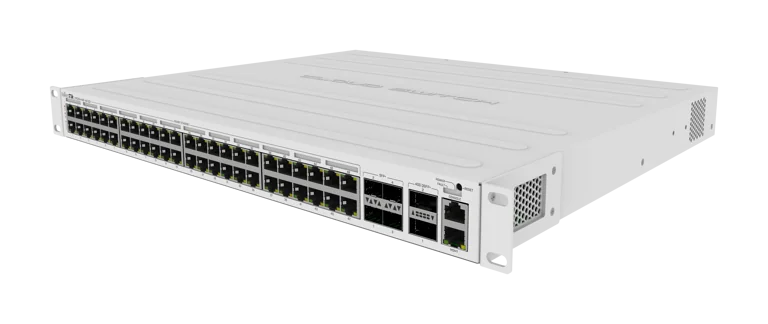
A computer loses its connection, an access point keeps restarting, or file transfers become unusually slow. Although these problems may involve the switch, they can also originate from cables, endpoint devices, power supplies or configuration.
Effective MikroTik switch troubleshooting starts with identifying the affected part of the network. Changing settings or replacing equipment before collecting evidence can make the original problem harder to understand.
This guide explains practical checks for business networks in Kenya. If an investigation establishes that different equipment is needed, use your findings when comparing options at MikroTik Kenya.
Establish How Much of the Network Is Affected
Before restarting anything, determine the scope of the problem.
Check whether it affects one device, one area or the whole installation. Ask when it started and whether anyone recently moved equipment, replaced a cable or changed settings.
A useful incident record includes:
- The affected devices and locations.
- The time the problem began.
- Whether wired and wireless connections behave differently.
- Whether power was interrupted.
- Recent equipment or configuration changes.
For example, if every device on one floor loses connectivity while other floors remain operational, investigate that floor’s shared uplink and power arrangement first.
Use the Symptoms to Choose Your First Check
| Symptom | Useful starting point |
|---|---|
| One computer has no connection | Cable, endpoint interface and assigned switch port |
| An entire area is offline | Shared uplink, local switch and power |
| Transfers are slow | Negotiated speed, errors and competing traffic |
| A camera repeatedly restarts | PoE compatibility, power demand and cabling |
| A fibre link will not establish | Modules, fibre path and interface settings |
| Problems began after a change | Compare the change with the previous working state |
These observations guide the investigation. They do not prove that a particular component has failed.
Check Physical Connections Before Changing Configuration
Inspect the affected cable and its connectors.
Look for loose plugs, damaged jackets, strained connections and equipment that has been moved. Check patch-panel connections as well as the short cable beside the device.
Where practical, test with a known-good cable. Change one component at a time so you can identify what affects the result.
If testing another switch port, first confirm that it has the correct configuration and, where relevant, compatible PoE settings. Moving a device to an unrelated port may introduce a different problem rather than isolate the original one.
Confirm the Negotiated Link Speed
A port operating below its intended speed can limit performance.
RouterOS provides Ethernet monitoring information, including link settings and interface statistics. Its documentation also explains that copper auto-negotiation allows connected devices to agree on supported transmission settings. MikroTik Documentation
For example, a link expected to run at Gigabit speed but operating at 100 Mbps deserves investigation. Check the endpoint’s capabilities, cable condition and settings at both ends.
Do not force a speed simply because it is the desired result. First establish why the link is not operating as expected.
When evaluating a multi-gigabit replacement such as the MikroTik CRS310-8G+2S+IN, confirm that the endpoints and installed cabling can support the intended upgrade.
Separate Local-Network Performance From Internet Performance
Test a local resource and an internet service separately.
If local transfers perform normally but internet access is slow, investigate the router, provider connection and external service. If both are affected, look for a shared limitation.
Also compare a suitable wired test with a wireless test. Good wired performance alongside poor wireless performance points towards a different investigation from a problem affecting both.
Keep the test conditions consistent. A transfer from slow storage is not a reliable measure of the switch’s maximum forwarding capability.
Check Whether Shared Links Are Congested
An uplink can carry traffic from many devices simultaneously.
Compare performance during quiet and busy periods. Look for scheduled backups, large downloads or several users transferring files through the same connection.
If a shared link is consistently full, assess whether its capacity matches the workload. Increasing individual workstation speeds may not resolve congestion on their common uplink.
For networks using several SFP+ connections, review the MikroTik CRS309-1G-8S+IN only after identifying the required interfaces and capacity.
Investigate PoE Failures as Power Problems
A powered device that disconnects may actually be restarting.
Confirm the exact endpoint model and compare its requirements with the switch’s supported PoE output. Check the individual port limit and the combined demand from all powered devices.
MikroTik documents several PoE implementations, including passive PoE and standards-based options. Compatibility depends on the specific equipment, and PoE output includes overload and short-circuit detection. MikroTik Documentation
If the issue appears only when additional devices are connected, review total demand. If it occurs when a camera activates additional functions, investigate its maximum operating requirements.
For an installation using the MikroTik CRS354 PoE switch, prepare an endpoint list before requesting technical assistance.
Do not force power onto an unverified device to see whether it starts.
Check Fibre Links at Both Ends
For an optical connection, verify the module models, fibre type, connector arrangement and intended link speed.
Inspect the complete path, including patch leads and intermediate panels. Confirm that the selected optics form a compatible pair.
RouterOS can display transceiver diagnostic information where supported. Its Ethernet documentation also notes that SFP/QSFP link-mode behaviour differs from ordinary copper auto-negotiation, so settings need review at both ends. MikroTik Documentation
Record the installed modules before ordering replacements. A physically similar module may have different optical requirements.
You can discuss compatible equipment through the MikroTik switches category at Orbitlink Solutions.
Review VLAN Changes When the Link Is Up but Access Fails
A working physical connection does not establish that the device is on the correct logical network.
If a device links successfully but cannot reach required services, compare its addressing and assigned network with the documented design. Check relevant access-port settings and the VLANs carried by uplinks.
Investigate recent changes before adding broad permissions. Opening access indiscriminately may hide the fault while weakening the intended separation.
Keep a local recovery method available when modifying management access or VLAN configuration.
Avoid Repeated Resets Without Diagnosis
A restart may restore service temporarily without resolving the cause.
Record useful observations before restarting, including the affected interfaces, errors and timing. Save the working configuration before substantial changes.
A factory reset should have a specific recovery purpose and a plan for restoring required settings. It should not be the routine response to an unexplained slow connection.
When seeking assistance through the MikroTik switch listings at Jupitaz or Network Switch Kenya, provide the model, software version and tests already completed. Confirm the supplier’s support scope directly.
Replace Equipment Only When the Findings Support It
Replacement may be appropriate when hardware is faulty or its capabilities no longer meet the installation’s requirements.
Before purchasing, distinguish that situation from a damaged cable, incompatible accessory or configuration problem.
For PoE equipment enquiries, you can consult the CRS354 listing at Tawa and the CRS354 listing at Reisen SEO.
Share the measured limitation and connected-device requirements so the proposed replacement addresses the actual problem.
Frequently Asked Questions About MikroTik Switch Troubleshooting
Does a link light mean the connection is healthy?
No. It indicates a physical link, but speed, errors, addressing and access policies still need checking.
Why does one device work while another fails on the same switch?
The devices may use different cables, port settings, power requirements or network segments. Compare those differences systematically.
Should I upgrade the switch to fix slow internet?
Only if the investigation identifies the switch or its connections as the limiting factor. The provider service, router and endpoints may need separate assessment.
What information should I prepare for support?
Provide the exact switch model, software version, affected ports, connected-device models, recent changes and repeatable test results. Keep passwords and sensitive configuration details out of public messages.
Where can I compare replacement MikroTik switches in Kenya?
Visit MikroTik Kenya after identifying the required port speeds, interfaces, power capabilities and management features. Use the troubleshooting findings to guide the purchase.
