Can the MikroTik RB5009UG+S+IN Work with Fibre Internet in Kenya?
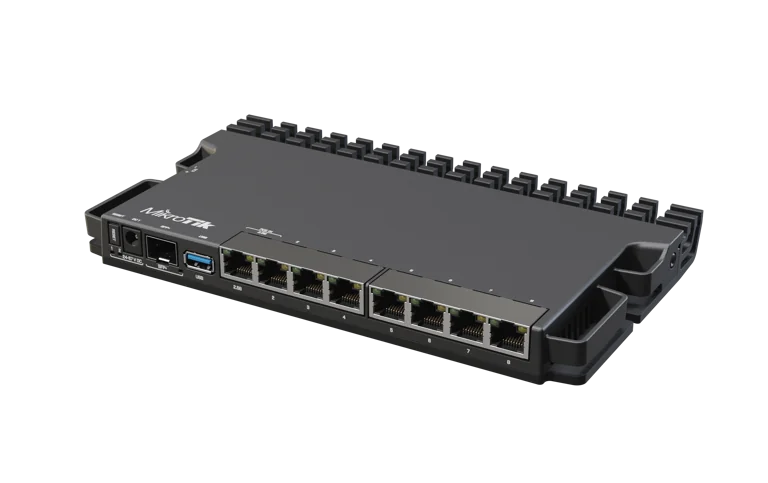
Yes, the MikroTik RB5009UG+S+IN can work with a fibre internet service when the provider’s connection method and configuration requirements are compatible. The important step is establishing how your internet provider hands over the connection to your equipment.
In many installations, a fibre terminal supplies an Ethernet connection to the router. Other services may provide an optical Ethernet handoff. These arrangements require different equipment and should not be treated as interchangeable.
If you are considering the MikroTik RB5009UG+S+IN for your fibre network, this guide explains what to confirm before purchasing or changing your existing setup.
How Does the MikroTik RB5009 Connect to Fibre Internet?
Start by identifying the equipment your provider has installed.
An optical network terminal, commonly called an ONT, terminates a compatible fibre service at your premises. Depending on the installation, the provider’s device may also perform routing and provide Wi-Fi.
A typical arrangement connects the provider’s Ethernet output to the MikroTik router. The MikroTik then connects to your switches, computers and wireless access points.
| Equipment | Role |
|---|---|
| Provider’s fibre terminal | Terminates the provider’s optical connection |
| RB5009UG+S+IN | Routes traffic between your network and the upstream connection |
| Network switch | Provides additional wired connections |
| Wireless access points | Connect phones, tablets and laptops over Wi-Fi |
| Backup power | Keeps the required local equipment operating during interruptions |
Before making changes, ask the provider which functions must remain on its equipment.
Can You Connect the Provider’s Fibre Cable Directly to the SFP+ Port?
Do not assume that an SFP+ cage can replace your provider’s fibre terminal.
The RB5009UG+S+IN has a 10G SFP+ cage, alongside seven Gigabit Ethernet ports and one 2.5G Ethernet port. However, those interface specifications do not establish compatibility with every provider’s optical service.
Ask the provider whether it supplies an Ethernet optical handoff or a service requiring a provisioned ONT. Confirm the required technology, module compatibility and authorisation before purchasing optical equipment.
A connector fitting physically does not prove that the connection will work.
Where the provider requires its ONT, retaining that device and using its Ethernet output is the arrangement to evaluate first.
What Information Should You Request from Your Internet Provider?
Get the connection requirements before your installer begins configuration.
| Question | Why it matters |
|---|---|
| Can I use my own router? | Establishes the supported installation arrangement |
| Must your ONT remain connected? | Determines whether provider equipment stays in the network |
| Is the connection DHCP, PPPoE or static IP? | Determines how the router obtains connectivity |
| Is a VLAN ID required? | Some handoffs require tagged traffic |
| What Ethernet speed does the terminal support? | Identifies a possible physical bottleneck |
| Is bridge mode available? | Helps determine which device performs routing |
| Are telephone or TV services tied to the terminal? | Prevents disruption to other subscribed services |
| Is the connection behind carrier-grade NAT? | Matters when planning incoming remote connections |
Keep the provider’s answers with your network documentation. Avoid copying settings from another customer’s installation without confirming that they apply to your service.
What Are DHCP and PPPoE Connections?
These are two possible ways of establishing the internet connection, depending on the provider.
DHCP
With DHCP, the router requests addressing information from the upstream network. MikroTik documents a DHCP client that can obtain an address and accept settings such as a gateway and DNS information.
A DHCP-based service may still have other requirements, so an automatic address does not remove the need to confirm the provider’s instructions.
PPPoE
PPPoE establishes a session over Ethernet and commonly uses a username and password. RouterOS includes PPPoE client functionality.
If your provider uses PPPoE, obtain the correct credentials and any associated VLAN requirements.
Static addressing
For a static connection, the provider supplies the addressing details to configure. Record the assigned address, prefix or subnet information, gateway and DNS settings as applicable.
There is no universal RB5009 configuration that suits every fibre provider.
Should You Use Bridge Mode?
Bridge mode can allow the provider’s device to pass the connection through while the MikroTik performs the routing functions.
Whether this is available or appropriate depends on the provider’s equipment and service.
If both devices perform IPv4 NAT, the installation may have double NAT. This is not automatically unusable, but it can complicate incoming connections, port forwarding and some applications.
Ask your installer to explain which device will handle:
- Internet authentication.
- Routing and NAT.
- Address assignment to local devices.
- Firewall policies.
- Wireless connectivity.
Do not enable bridge mode without checking its effect on provider-managed telephone, television or support services.
Will the RB5009 Make Your Fibre Internet Faster?
It cannot increase the bandwidth included in your internet subscription.
An upgrade may help when your existing router is the limiting factor, but other causes of poor performance should be investigated first.
Check:
- Whether the issue occurs over Ethernet as well as Wi-Fi.
- The negotiated speed between the provider terminal and router.
- Download and upload utilisation during busy periods.
- The test device’s network interface and performance.
- Whether background transfers are consuming capacity.
For a service above Gigabit speed, every relevant connection must support the intended throughput. A slower provider terminal, switch port or client interface can limit the result.
Also distinguish interface speed from routing performance. MikroTik’s published RB5009 tests vary by packet size and configuration; a fast port does not guarantee the same throughput under every workload.
How Do You Add Wi-Fi to the Fibre Connection?
The RB5009UG+S+IN is a wired router. Plan separate access points for wireless coverage.
Position access points according to the building layout and where users spend time. The location where fibre enters the property may not be the best location for Wi-Fi coverage.
For an office or larger home, assess:
- Walls and floor separation.
- Busy rooms and device concentration.
- Ethernet cable routes.
- Access-point power requirements.
- Interference from neighbouring networks.
Test wireless performance separately from the wired internet connection. This helps distinguish provider or routing problems from coverage issues.
Can You Use the Fibre Connection for a Paid Hotspot?
First confirm that your provider’s service terms permit your intended use, including resale or distribution where applicable.
Then plan wireless coverage, customer access control and billing as separate parts of the installation.
You can explore Hotspot Billing System Kenya and request a demonstration of the intended customer workflow. Ask how activation, package expiry and failed transactions are handled.
A working fibre connection alone does not establish that the complete hotspot service is ready for customers.
What Should You Test Before the Installer Leaves?
A useful handover checks everyday functions rather than only displaying a speed-test result.
Ask the installer to verify:
- Internet access from wired devices.
- Coverage in the rooms that require Wi-Fi.
- Online meetings and important business applications.
- Guest-network isolation where configured.
- Reconnection after a controlled restart.
- Any required remote-access arrangement.
- Backup-power operation for essential equipment.
Request a configuration backup and a simple diagram showing the provider terminal, router, switches and access points.
Keep administrative credentials secure and establish who will provide ongoing support.
How Should You Compare Equipment Quotations in Kenya?
Give each supplier the same requirements so that quotations are comparable.
Specify the exact router model, provider handoff, wireless requirements, required accessories and configuration work.
You can review the Orbitlink Solutions RB5009UG+S+IN listing and the Tawa RB5009 router listing as additional product references.
The Jupitaz RB5009 product link and Reisen SEO RB5009 product link are further references to check when gathering quotations.
Confirm availability, package contents and warranty terms directly. Do not order an optical module until the intended connection has been specified.
Frequently Asked Questions
Can I remove the fibre terminal supplied by my provider?
Only if the provider confirms a supported alternative. The router’s SFP+ interface does not automatically replace a provisioned terminal.
Do I need an SFP+ module to use fibre internet?
Not when you connect the router through the provider terminal’s Ethernet output. Optical accessories depend on the handoff you are actually using.
Will my existing Wi-Fi still work?
That depends on which device provides it and whether changing its operating mode disables the wireless service. Confirm the planned arrangement before switching over.
Can the RB5009 guarantee the full speed of my package?
No router can guarantee end-to-end internet speed under all conditions. Provider capacity, configuration, cabling, endpoints and remote services all affect results.
What should I confirm before buying?
Confirm the provider’s router policy, required terminal, connection method, authentication details and handoff speed. Then identify the switches, access points and accessories needed.
Plan the Connection Before Choosing Accessories
The RB5009UG+S+IN can form part of a fibre-connected home or business network when the provider handoff and configuration are suitable.
Start with the provider’s requirements, then build the local network around your users and applications. Review the MikroTik RB5009UG+S+IN product page for specifications and purchase information before finalising your equipment list.
